See how AssetTXT works, start to finish
From the unit on the vehicle to the text on your phone. Screens are shown with sample data.
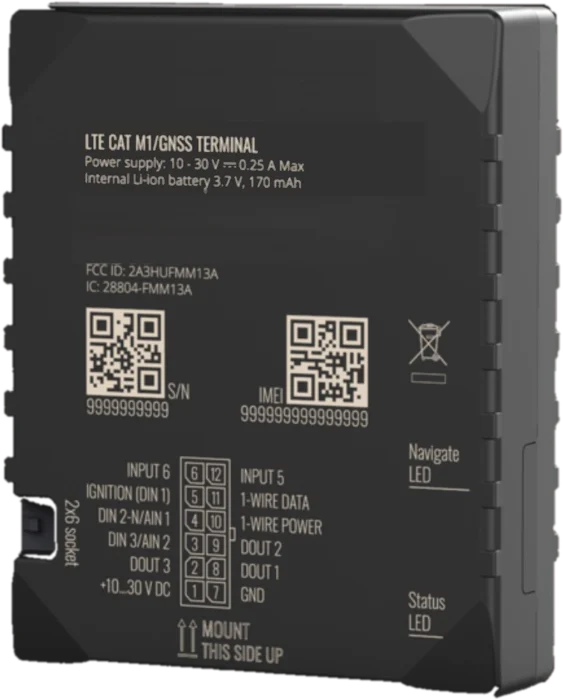
A small unit goes on each vehicle
Smaller than a deck of cards. It runs on the vehicle's power, has its own backup battery and one cellular SIM.
- Fits any 12V or 24V vehicle or equipment
- Wires to a heat sensor, your fire suppression system and a panic button
- FireGator sets up every unit before handoff
All your vehicles in one place
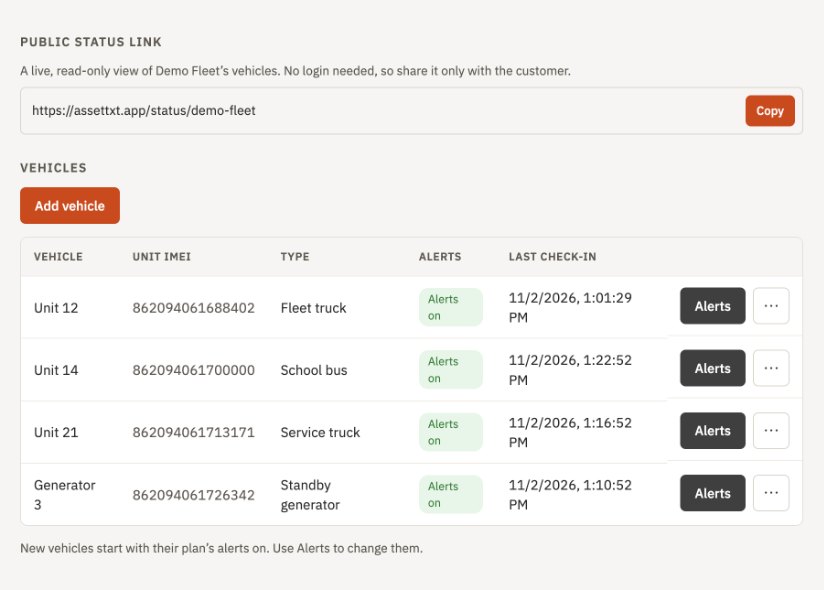
Sign in to see every unit, its type, whether alerts are on and when it last checked in.
- Add vehicles as your fleet grows
- Copy one link to share live status
Choose what you hear about
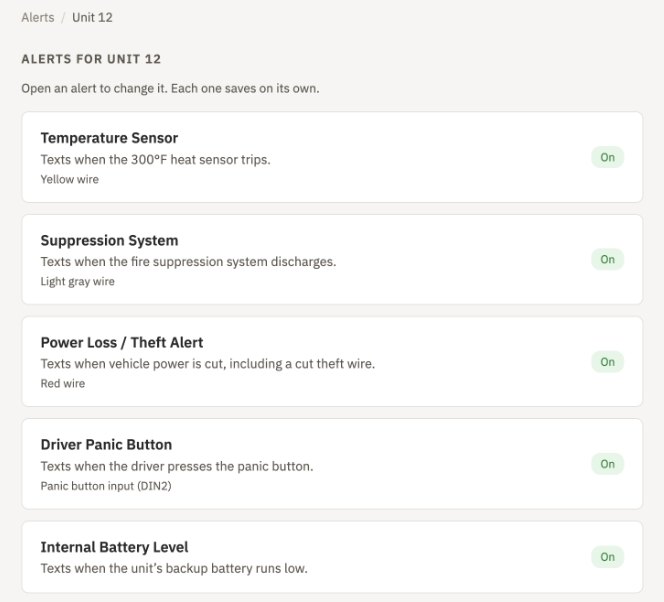
Each vehicle has its own alert list. Turn alerts on or off, and each change saves on its own.
- High heat, suppression discharge, power loss and theft
- Driver panic, crash, rollover and speeding
- Pick who gets the texts
The alert arrives as a text
When something happens, everyone on the list gets a plain text and an email within seconds, with the vehicle name and a map link.
- No app to install
- Works on any phone
- Replies come back to your team
Map: maps.google.com/?q=34.1889,-82.1733
Sample alert. Real alerts name your vehicle and its location.
Open the live status
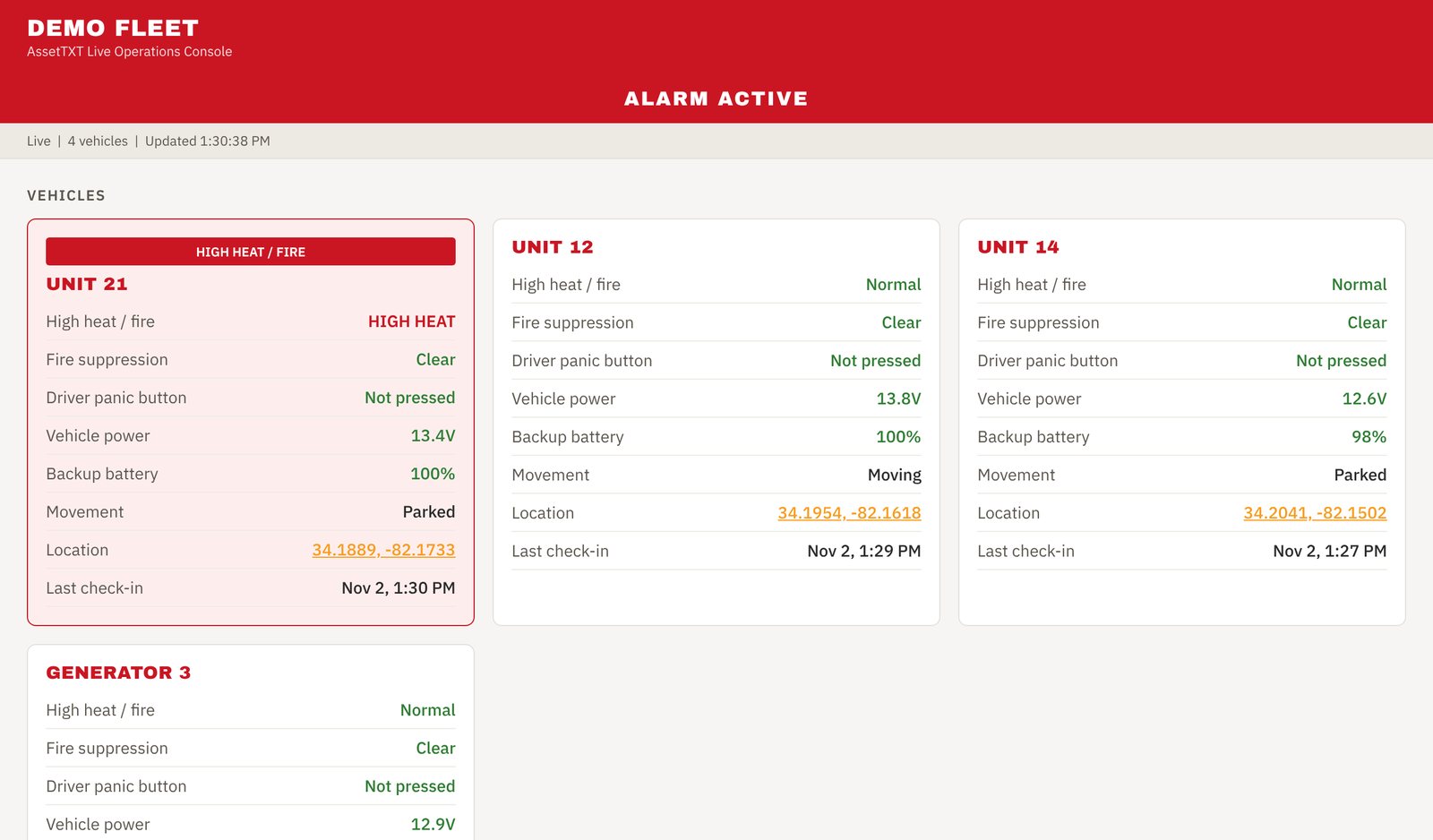
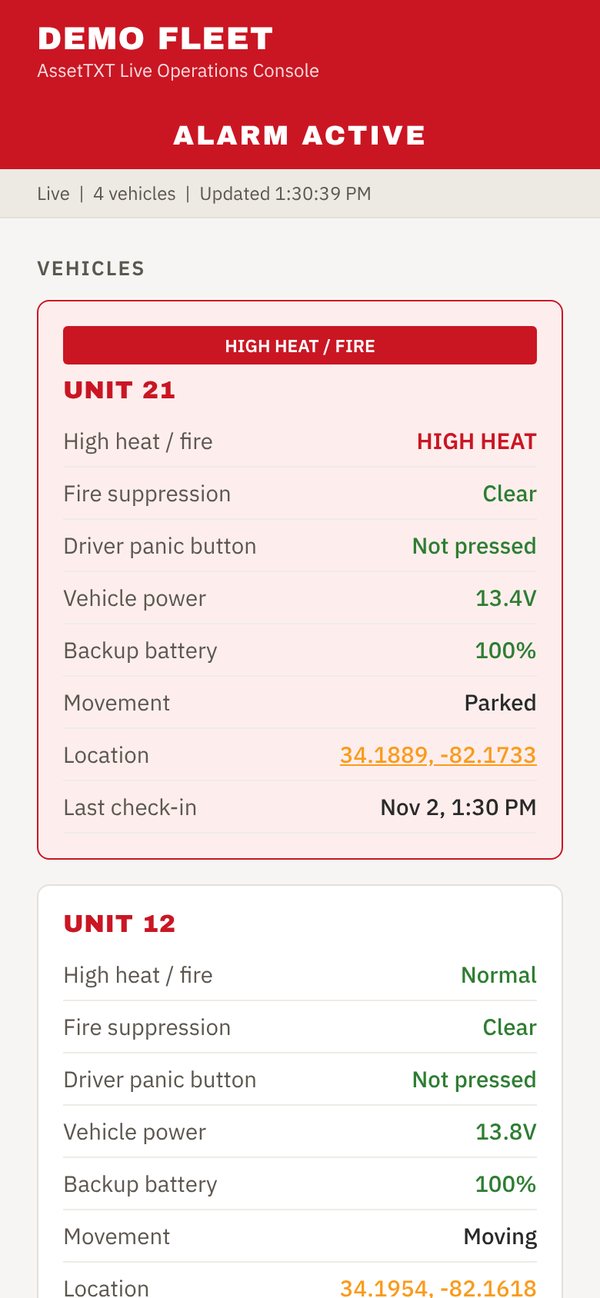
One link shows every vehicle at once. A vehicle in alarm turns red, with what tripped, where it is and when it last checked in.
- Updates live, no refreshing
- Works on a phone or a big screen in dispatch
Every event is saved
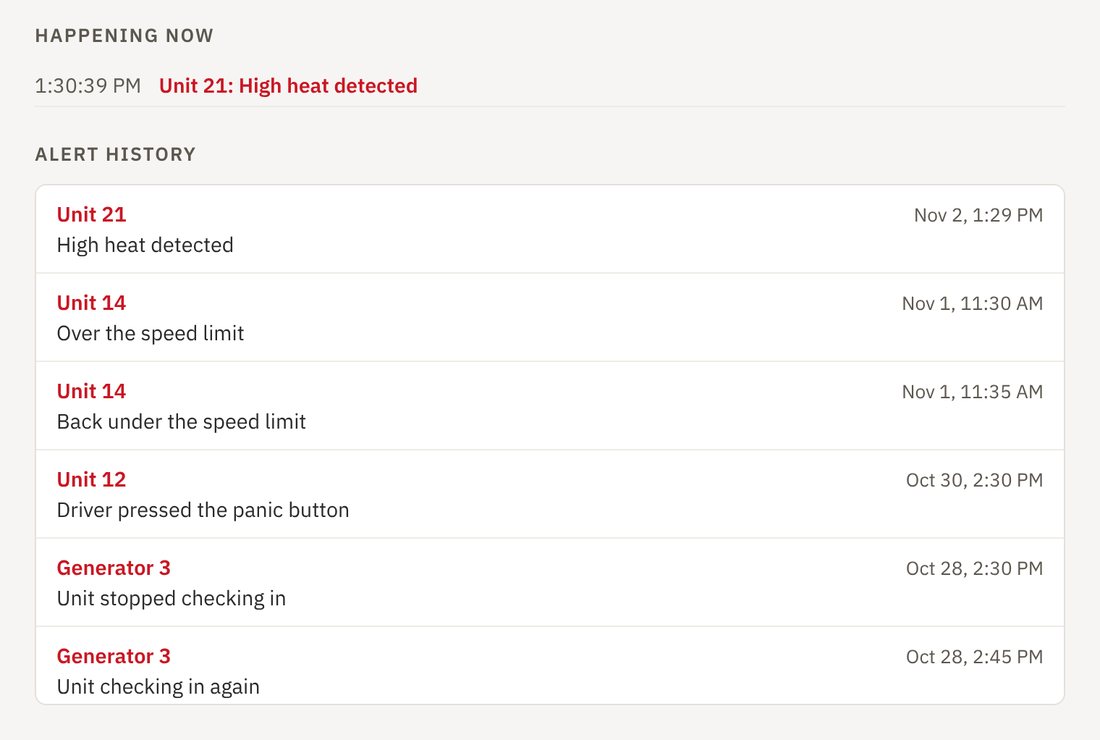
Alert history is kept for six months, so you can follow up, show what happened and when, and spot patterns.
Ready to see it on your fleet?
Tell us what you run and we'll help you pick the right level.